
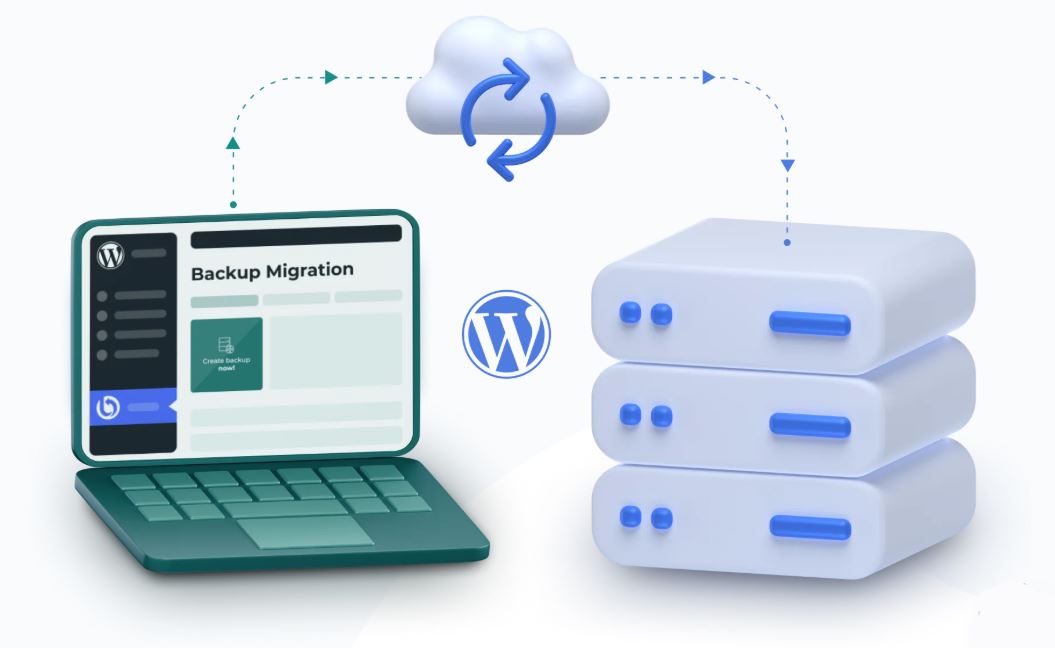
If you run a WordPress website, backups are not optional. They are one of those things people often ignore until the day they need one desperately.
A plugin update goes wrong. A theme clashes with something. Malware sneaks in. The hosting company has a wobble. Or perhaps you accidentally delete something important while having a “quick tidy up”.
When these little disasters strike, a recent backup can be the difference between a ten-minute fix and a week of muttering at the screen.
The Old Way of Doing Things
Traditionally, most WordPress backup plugins have worked in a similar fashion. They create a backup of your website, and optionally allow you to connect it to another cloud service such as Google Drive, Dropbox, or Amazon S3.
However, built-in cloud storage offers a more streamlined alternative to general file services such as those widely known ones. Because it is designed specifically for website backups, setup and management can feel more straightforward, with tighter integration between the plugin and the storage platform. It also keeps backups separate from personal or business files, making them easier to organise and restore when needed.
For users who want a dedicated backup solution rather than managing multiple external services, this can be a practical advantage.
A New Option With Free Built-In Cloud Storage
Many backup plugins connect to third-party services such as Google Drive or Dropbox, while some also offer their own managed cloud storage platforms.
Backup Migration stands out by including BackupBliss, its own dedicated cloud backup service, with a free 1GB tier. This allows users to begin storing backups off-site without needing a paid cloud plan or separate storage subscription.
For users who want a simple, purpose-built backup destination from the start, that can be a practical advantage.
Getting Started is Nice and Easy
Installing Backup Migration is the same as installing any WordPress plugin. Head to the plugin area in your dashboard, search for it, install it, and activate it.
Once switched on, the plugin is ready to use with sensible default settings already in place.
You can create your first full backup with a single click. No wrestling with technical menus. No mysterious settings that require a degree in computer wizardry.
For many small business owners and sole traders, that simplicity will be the biggest selling point.
Set It and Forget It
Of course, manual backups are all well and good, but most people are busy running businesses rather than remembering to back up websites every Friday afternoon.
That is why scheduled backups matter.
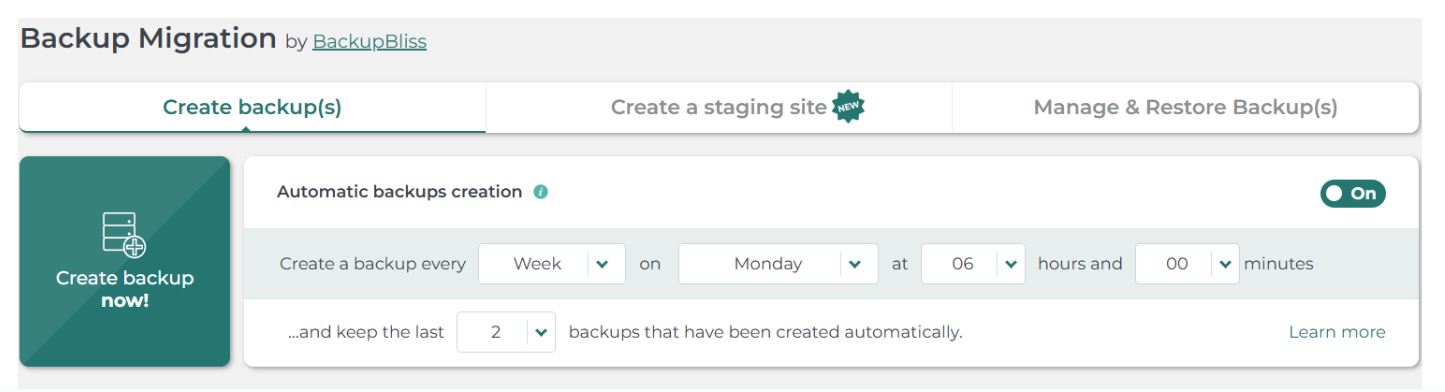
Backup Migration lets you automate the whole process. Choose a schedule that suits your website – weekly for smaller brochure sites, daily for busy shops or regularly updated blogs – and let it crack on quietly in the background.
Once set, backups are created automatically and can be sent straight to your chosen storage destination.
This is how backups should work. Quietly. Reliably. Without demanding attention.
Connecting BackupBliss
If you would like to use the built-in cloud storage, setup is pleasantly simple.
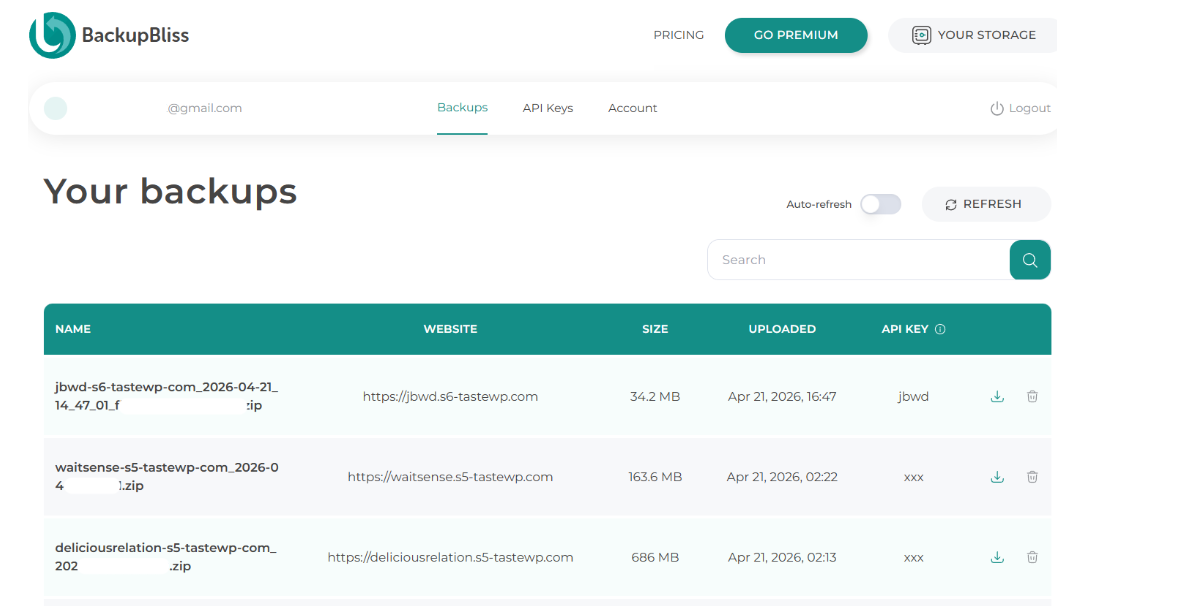
Create a free BackupBliss account, generate an API key, and paste it into the plugin under the backup storage settings.
That is essentially it.
Once connected, your backups can be uploaded automatically to the cloud. So even if your hosting account falls into the sea, you still have a safe copy elsewhere.
And that, dear reader, is the whole point of off-site backups.
Still Want to Go With the Popular Option? No Problem.
Some users already have their own systems in place, and fair enough too.
Backup Migration still supports a range of external destinations including:
- Google Drive
- Dropbox
- OneDrive
- Amazon S3
- FTP / SFTP
- Wasabi
- pCloud
So if you prefer using your own storage accounts, you are not locked into anything.
It simply gives you another option – and a very convenient one at that.
Handy Controls for Power Users
While beginners can happily use the default settings, more advanced users are not left out in the cold.
You can choose what gets backed up, exclude unnecessary folders, skip cache files, leave out temporary logs, and generally tidy things up.
This can reduce backup size and speed up the process.
Or, if you are the belt-and-braces type who wants absolutely everything backed up, including the kitchen sink, you can do that too.
It Also Helps With Site Migrations
The clue is in the name.
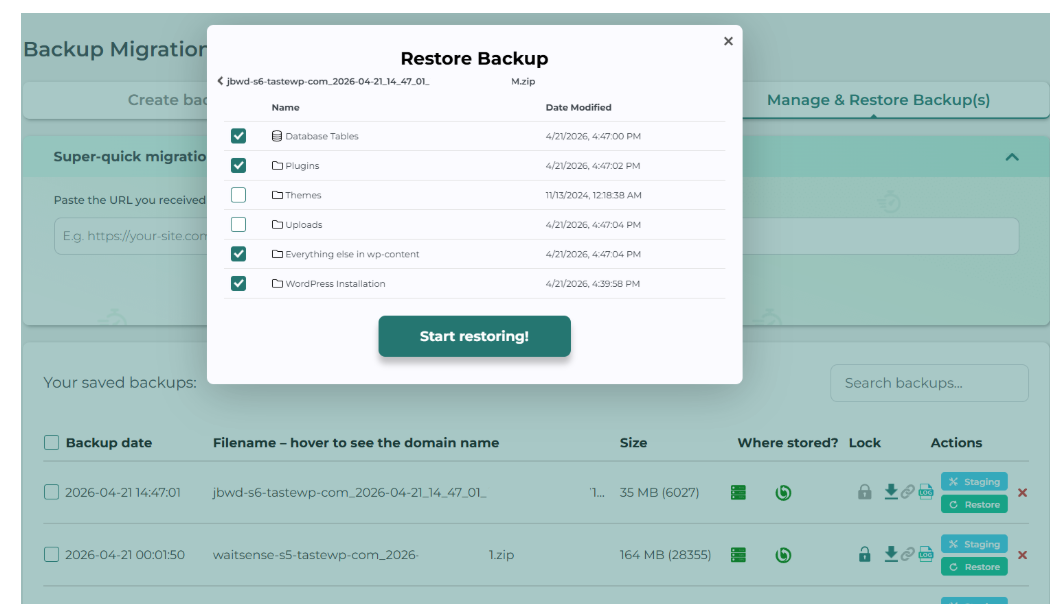
Backup Migration is not only useful for backups – it can also help move a WordPress website from one host to another or from one domain to another.
You can restore from cloud storage, upload a backup manually, or use a direct backup link.
For many users, that is a far simpler route than manually exporting databases, editing config files, and whispering rude words at phpMyAdmin.
Why This Matters
WordPress powers a huge portion of the web, but many site owners still do not have a proper backup routine in place.
Usually, it is not because they do not care.
It is because backups can feel fiddly, confusing, or like one more technical job to postpone until next week.
By combining backup software with free cloud storage in one package, Backup Migration removes a lot of that friction.
That makes it more likely people will actually use it – which is rather important.
Final Thoughts
Backups should be simple, dependable, and quietly effective.
Backup Migration ticks those boxes nicely, and the inclusion of BackupBliss free cloud storage gives it something genuinely different in a crowded market.
Backup Migration combines simplicity, reliability, and a polished user experience in this tool built to keep your website safe.


